
Sheets canvas sharing: a guide for Singapore operations teams
Publish a Sheets canvas without sharing the source spreadsheet. Review rollout dates, audience controls and practical checks for Singapore teams.
Product news · Official announcement: 11 November 2026 · By Oliver Machwirth
Share a useful view without creating another spreadsheet copy
A team may need a simple way to show progress while keeping the working spreadsheet limited to its owners. Sending a fresh export every week creates another version to maintain. Giving everyone edit access creates a different problem.
Our suggested test is an internal equipment availability view built from sample data. Decide who needs to see the view, what they should be able to understand and which details should never appear in it. Keep the first audience small enough to check directly.
Understand the two separate sharing decisions
The new published link has its own audience setting and can present an interactive read-only canvas without granting access to the source sheet. Publishers can choose a static view or automatic updates. Existing organisational publishing controls still apply.
Check the account’s release track before writing instructions. The December Scheduled Release start is later than the Rapid Release date. A colleague who cannot yet see the option may simply be on a different track. Confirm the current source guidance before expanding the pilot.
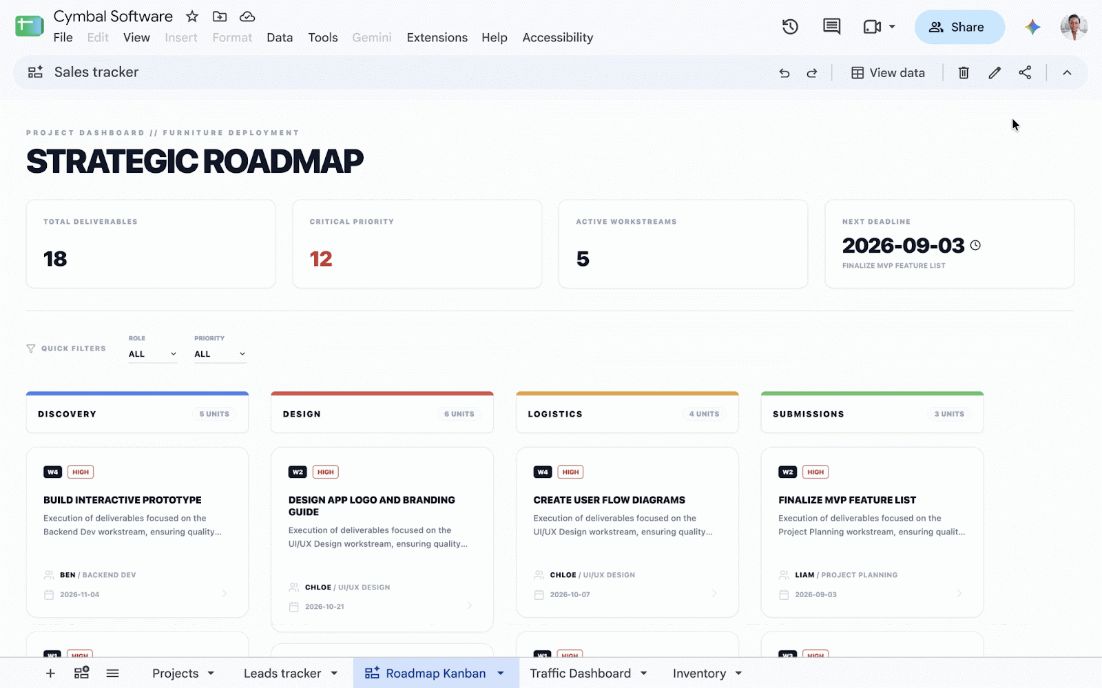
 Publish a Sheets canvas from its sharing controls.
Tap or click to enlarge
Official product visual source: Google. Vendor demonstration, not Digigen customer data.
Review what a viewer can actually see
Open the published link with the intended viewer account. Check names, hidden business details and any values that could be misunderstood without context. Do not rely on how the creator sees the canvas.
Include a short explanation of the data date, the owner and the meaning of each status. A read-only interface still needs accurate content. If a number is an estimate or a status has not been reviewed, make that visible to the reader.
Test updates and the end of the sharing period
Change one sample value and check the resulting view. Confirm that the chosen update behaviour matches the purpose. Record how someone can stop publishing or change the audience when the work is complete.
If the view supports colleagues in Singapore and Thailand, check the date and time conventions as well. A clear label prevents a reader from assuming that a deadline or refresh time uses their local time zone.
Keep the operating arrangement simple
Write down who maintains the sheet, who approves the view and who answers a question about the information. Make the published link easy to find in the team’s normal workspace without creating several competing versions.
After a short trial, ask viewers what they could decide from the canvas and what still needed an explanation. Digigen can help connect a useful view to the wider workflow, including Workspace permissions, data ownership and adoption.
Questions teams ask
Does the published link give edit access to the sheet?
The announcement describes a separate read-only canvas link. Test the actual audience and source permissions before sharing it.
When does Scheduled Release begin?
Google’s announcement lists 2 December 2026, with gradual visibility. Recheck the current rollout guidance.
Should every view update automatically?
Choose the behaviour that fits the purpose and test it. A fixed reporting snapshot and an operational view may need different arrangements.
Plan a useful next step
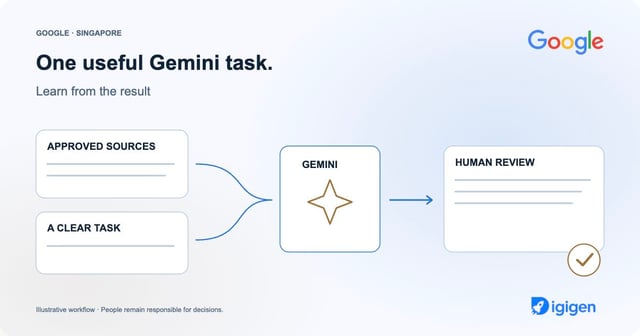
Start with one task your team can test and a result someone can review. If you need help connecting the product to everyday work, speak with Digigen about configuration, adoption and a focused AI pilot.
Google Workspace in Singapore · Google Workspace in Thailand · Talk to Digigen