
OneDrive Prompt Gallery: useful first tests for Thai teams
Explore the new Copilot Prompt Gallery in OneDrive with practical Thai-team examples, source checks and a clear review process for generated work.
Product news · Official announcement: 30 October 2026 · By Oliver Machwirth
Choose a file you already understand
A gallery is most useful when it helps someone discover a task they can recognise. Start with a short internal document that the reviewer knows well. Avoid using an unfamiliar customer folder as the first experiment.
Our suggested exercise is to turn an approved internal briefing into a draft checklist. Before using AI, write the points a good checklist must include. This gives you a fair comparison and makes it easier to spot an answer that sounds polished but misses the work.
Use a prompt as a starting point
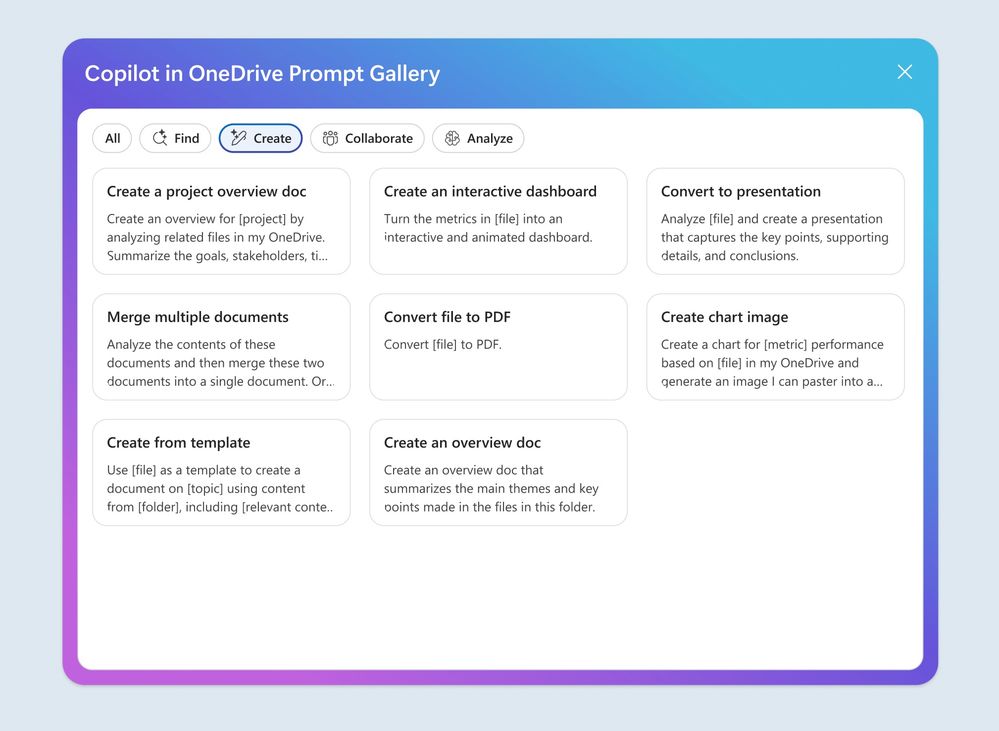
The gallery is reached through Copilot in OneDrive and organises suggested prompts into task categories. Availability depends on the user’s account and the current product conditions. Check the interface shown in the intended account.
Add the reader, the purpose and the desired output to your request. If an important fact is not in the file, ask the draft to identify it as missing. Do not make the first exercise depend on the system guessing what your department means.
Browse file-task prompts in Copilot in OneDrive.Tap or click to enlarge
Official product visual source: Microsoft. Vendor demonstration, not Digigen customer data.
Compare the result with the source
Check each proposed action against the original briefing. Look for changes to dates, owners and commitments. If the output introduces a step that was not in the source, decide whether it is a useful recommendation or an unsupported addition.
Keep that distinction visible when the draft moves to a colleague. A reviewer should know which items came from the document and which were proposed during the exercise. The final checklist still belongs to the person responsible for the work.
Test Thai and English meaning
For a team in Thailand, use the language people actually need in the final document. Ask a fluent reviewer to check tone, names and terms used in your business. An English product screenshot does not establish the quality of a Thai output.
When colleagues in Singapore share the same source, agree which terms should remain consistent and where local wording should differ. Keep those decisions beside the example so the next person does not have to discover them again.
Keep the useful prompts and retire the rest
At the end of the trial, record the task, source, instruction and correction required. Keep examples that help colleagues produce reviewable work. A long list of prompts is less useful than a few clear examples that people understand.
If the exercise becomes a recurring process, assign an owner to maintain it. Digigen can help connect Microsoft 365 configuration and team learning, so the feature supports the work rather than becoming another tool people are expected to explore alone.
Questions teams ask
Does a suggested prompt know our internal process?
Only provide the approved context needed for the task, and check the result. Do not assume a general prompt understands your process.
Is a generated checklist ready to send?
Review it against the source, especially dates, owners and commitments, before sharing.
What should we keep from the pilot?
Save a small set of useful examples with their source, purpose, owner and review notes.
Plan a useful next step
Start with one task your team can test and a result someone can review. If you need help connecting the product to everyday work, speak with Digigen about configuration, adoption and a focused AI pilot.
Microsoft 365 in Singapore · Microsoft 365 in Thailand · Talk to Digigen